
There are many web applications that need access restricted to only certain IP addresses. This can normally be achieved at the web server level:
- Apache with mod_authz_host, as explained here.
- nginx with ngx_http_access_module.
- lighttpd with mod_access.
However, using Cloudflare as a reverse proxy is becoming increasingly popular. A reverse proxy is a service that receives requests from clients and forwards them to one or more origin servers located behind it. Clients do not communicate directly with those servers, but with the reverse proxy, which acts as an intermediary between both ends, as shown in the following figure:
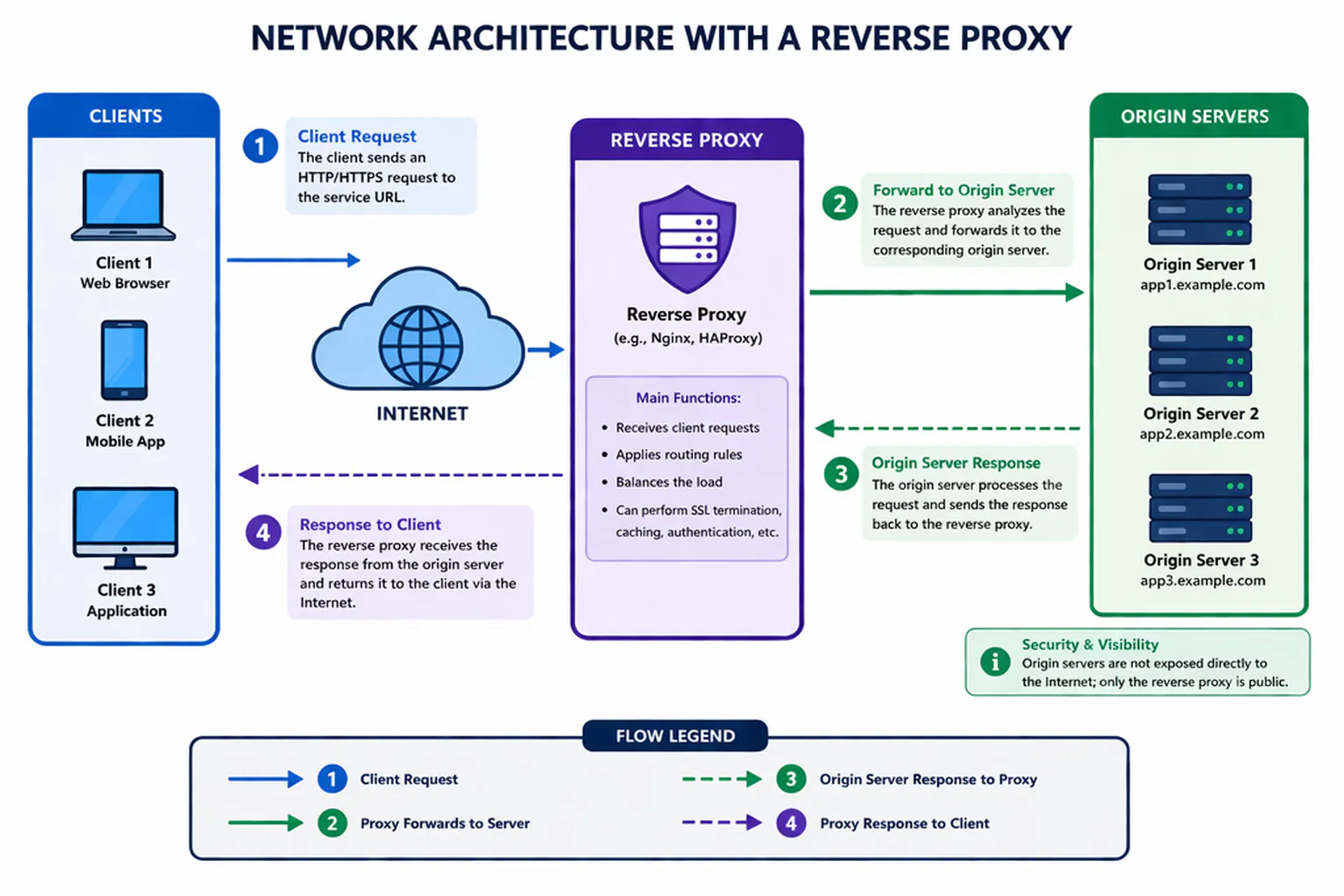
In our scenario, the origin server must accept connections only from Cloudflare’s IP ranges (which can change over time) and enforce the restriction using the real client IP.
Table of contents
Table of contents
Cloudflare
In the Cloudflare console
The first part of the solution is handled in Cloudflare.
In the Cloudflare dashboard, go to Security → WAF → Custom rules and create a rule:
- Enter an easy-to-identify name:
Name: Office only
- Create an “expression” or rule that tells Cloudflare’s WAF what to do. This can be the most complex part.
Expression (Edit expression):
A simple rule could be
(ip.src ne a.b.c.d)
which means “the source IP is not a.b.c.d”. This blocks all traffic not
coming from your office IP before it reaches your server. If you later need
to add another IP, the expression would look something like:
(ip.src ne a.b.c.d and ip.src ne e.f.g.h).
To apply a rule to specific hosts, you can do something like:
(ip.src ne a.b.c.d and http.host in {"app.example.com" "admin.example.com"})
This way, www.example.com or other subdomains pointing to unrestricted servers
remain unaffected.
- Select the desired action, in this case Block:
Action: Block
This causes Cloudflare to block requests coming from IP addresses that do not match the rule.
On the web server
As mentioned above, Cloudflare proxy IP addresses can change periodically. The following script updates a file with those addresses:
#!/usr/bin/env bashset -euo pipefail
RAW="/var/lib/cloudflare/cloudflare-trusted-proxies.lst"TMP="$(mktemp)"
cleanup() { rm -f "$TMP"; }trap cleanup EXIT
mkdir -p "$(dirname "$RAW")"
{    echo "# Cloudflare trusted proxies"    echo "# Generated on $(date -u '+%Y-%m-%d %H:%M:%S UTC')"    echo    curl -fsSL https://www.cloudflare.com/ips-v4    echo    curl -fsSL https://www.cloudflare.com/ips-v6} > "$TMP"
LINES=$(grep -cE '^[0-9a-f:.\/]+$' "$TMP" || true)if [ "$LINES" -lt 5 ]; then    echo "ERROR: only $LINES ranges obtained. Aborting." >&2    exit 1fi
if cmp -s "$TMP" "$RAW" 2>/dev/null; then    echo "No changes."    exit 0fi
mv "$TMP" "$RAW"chmod 644 "$RAW"echo "List updated ($LINES ranges)."This script can be run with cron or systemd. Since I’m not a fan of systemd, here is the procedure for cron:
sudo chmod +x /usr/local/sbin/update-cloudflare-proxies.shsudo crontab -e# Update Cloudflare proxies — Monday 4:00 AM0 4 * * 1 /usr/local/sbin/update-cloudflare-proxies.sh >> /var/log/cloudflare-proxies.log 2>&1First run of the script:
sudo /usr/local/sbin/update-cloudflare-proxies.shNow, you need to tell the origin web server the following:
- The list of Cloudflare proxy IP addresses.
- The allowed IP address.
- The access restriction for all IP addresses except the allowed one.
Apache
The remoteip module is required to obtain the real remote IP address.
sudo a2enmod remoteipsudo systemctl restart apache2Apache reads the list directly, without conversion:
<IfModule mod_remoteip.c> RemoteIPHeader CF-Connecting-IP RemoteIPTrustedProxyList /var/lib/cloudflare/cloudflare-trusted-proxies.lst</IfModule>Using RemoteIPHeader CF-Connecting-IP is vital, as it tells Apache that the
real client address comes from Cloudflare in that header.
Enable that configuration, either by creating the symlink in conf-enabled,
or with:
sudo a2enmod remoteipsudo systemctl restart apache2Then, apply the restriction for the source IP:
<VirtualHost *:443>    ServerName www.example.com
    # ... your SSL config, DocumentRoot, etc. ...
# Allow only your office IP <Location "/"> Require ip a.b.c.d 2001:db8::1 </Location></VirtualHost>sudo apache2ctl configtestsudo systemctl reload apache2nginx
nginx has no equivalent to TrustedProxyList, so you need to generate a snippet from the list:
#!/usr/bin/env bashset -euo pipefail
SRC="/var/lib/cloudflare/cloudflare-trusted-proxies.lst"OUT="/etc/nginx/snippets/cloudflare-trusted-proxies.conf"
{    echo "# Generated from $SRC — do not edit"    grep -E '^[0-9a-f:.\/]+$' "$SRC" | while IFS= read -r cidr; do        echo "set_real_ip_from $cidr;"    done    echo "real_ip_header CF-Connecting-IP;"} > "$OUT"
nginx -t 2>/dev/null && systemctl reload nginxserver { listen 443 ssl; server_name app.example.com;
include snippets/cloudflare-trusted-proxies.conf;
allow a.b.c.d; allow 2001:db8::1; deny all;
# ...}lighttpd
Same situation, requires a generated snippet:
#!/usr/bin/env bashset -euo pipefail
SRC="/var/lib/cloudflare/cloudflare-trusted-proxies.lst"OUT="/etc/lighttpd/conf-available/90-cloudflare-trusted-proxies.conf"
{    echo "# Generated from $SRC — do not edit"    echo 'server.modules += ("mod_extforward")'    echo 'extforward.headers = ("CF-Connecting-IP")'    printf 'extforward.forwarder = ('    FIRST=1    grep -E '^[0-9a-f:.\/]+$' "$SRC" | while IFS= read -r cidr; do        [ "$FIRST" -eq 1 ] && FIRST=0 || printf ','        printf '\n    "%s" => "trust"' "$cidr"    done    echo    echo ')'} > "$OUT"
lighttpd -t -f /etc/lighttpd/lighttpd.conf 2>/dev/null && systemctl reload lighttpdinclude "conf-available/90-cloudflare-trusted-proxies.conf"
# IP restriction on the vhost$HTTP["host"] == "app.example.com" { $HTTP["remoteip"] !~ "^(a\.b\.c\.d|2001:db8::1)$" { url.access-deny = ("") }}On the firewall
As an additional layer of defense, configure ufw so that port 443 (and 80) only accept traffic from Cloudflare’s ranges, rejecting direct connections from any other IP:
#!/usr/bin/env bashset -euo pipefail
SRC="/var/lib/cloudflare/cloudflare-trusted-proxies.lst"
if [ ! -f "$SRC" ]; then    echo "ERROR: $SRC does not exist. Run update-cloudflare-proxies.sh first." >&2    exit 1fi
CIDRS=$(grep -E '^[0-9a-f:.\/]+$' "$SRC")
if [ -z "$CIDRS" ]; then    echo "ERROR: no CIDRs found in $SRC." >&2    exit 1fi
# Remove previous Cloudflare rules on ports 80,443ufw status numbered | grep -E '80,443' | grep -oP '^\[\s*\K[0-9]+' | sort -rn | while read -r num; do    yes | ufw delete "$num"done
# Add updated ruleswhile IFS= read -r cidr; do    ufw allow from "$cidr" to any port 80,443 proto tcpdone <<< "$CIDRS"
ufw reloadecho "ufw updated with $(echo "$CIDRS" | wc -l) ranges."
This prevents anyone who discovers your server’s IP from connecting directly, bypassing Cloudflare.
Verification
From your office IP, access https://www.example.com — it should work normally. From another network (for example your mobile phone on mobile data), try to access it: you should receive a Cloudflare block (error 1020).
Check the Apache logs to confirm that real IPs are recorded correctly. In the case of Apache:
tail -f /var/log/apache2/access.logYou should see a.b.c.d and not a Cloudflare IP.
Defense model summary
| Layer | What it does | What it blocks |
|---|---|---|
| Cloudflare WAF | Filters by visitor IP | Unauthorized IP traffic before it reaches the server |
| Apache + mod_remoteip | Filters by restored real IP | Unauthorized traffic that manages to pass through Cloudflare |
| ufw | Filters by source IP at network level | Direct connections to the server that bypass Cloudflare |
The three layers together give you defense in depth: if one fails, the others hold the restriction.
Bonus
How do I get my “outgoing” IP address?
You can use a site like whatismyip to obtain your public outgoing IP address.
Scripts
You can find the scripts at https://github.com/rgglez/cloudflare-scripts, under the GPL 3.0 license.