Introduction
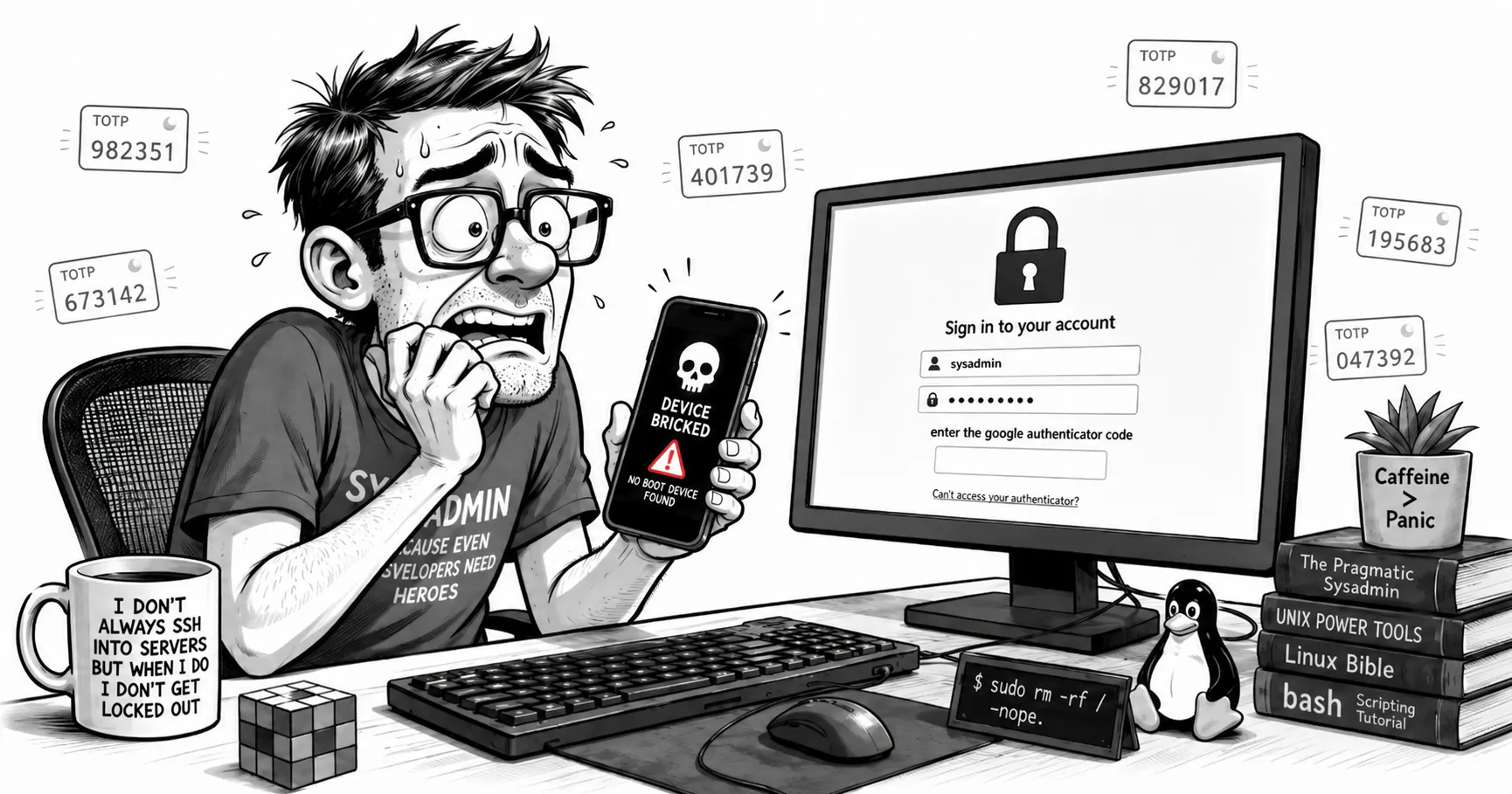
If you use Google Authenticator as a second authentication factor, you should not depend on a single phone. If that phone is damaged, lost, factory reset, or becomes inaccessible, you can be locked out of important services: email, hosting, banking, cloud panels, GitHub, social networks, domains, DNS managers, etc.
The solution is not simply “copying the app”. What matters is understanding that Google Authenticator stores TOTP seeds: cryptographic secrets shared between the service and your authenticator. Any device with the same seed can generate the same temporary codes. That is why you can have the same codes on two or more devices, but also why you must protect those devices very carefully.
In this guide we will look at three strategies:
- Synchronization with a Google account, convenient and suitable for many users.
- Local device-to-device transfer via QR, useful if you prefer not to depend on the cloud.
- Manual registration of the second device when configuring 2FA, the cleanest option when you are still activating the second factor on a site.
We will also cover what to do with backup codes, what risks exist, how to document your accounts, how to test recovery, and what procedure to follow if you lose your main phone.
Table of contents
Table of contents
- 1. Basic concepts: what you are really protecting
- 2. Mental model: password, second factor, and TOTP seed
- 3. Possible strategies
- 4. Recommended setup for a technical user
- 5. Step-by-step procedure: Google Authenticator on two devices
- 6. Recommended procedure by account type
- 7. Backup codes: the piece many people ignore
- 8. The Google account as a critical point
- 9. Risks of having Authenticator on multiple devices
- 10. What to do if you already lost your phone
- 11. Personal audit procedure
- 12. Recommendation for maximum-criticality accounts: FIDO2/WebAuthn
- 13. Initial setup checklist
- 14. Biannual maintenance checklist
- 15. Frequently asked questions
- Can I have the same Google Authenticator on two phones?
- Does the second phone need a SIM card?
- Can I save screenshots of the setup QR code?
- Is Google Authenticator synchronization enough?
- What happens when I switch phones?
- What happens when I sell my old phone?
- Can I use a password manager for TOTP?
- Is SMS better than Google Authenticator?
- 16. Final recommended procedure
- 17. References
1. Basic concepts: what you are really protecting
Google Authenticator typically implements TOTP, which stands for Time-Based One-Time Password. TOTP is defined in RFC 6238 and is an extension of HOTP, defined in RFC 4226. The practical difference is that HOTP advances by counter, while TOTP advances by time.
A typical TOTP code has these properties:
- it usually has 6 digits;
- it changes every 30 seconds;
- it is calculated locally on the device;
- it does not require an Internet connection to generate the code;
- it depends on a secret seed and the current time.
In simplified form:
code = TOTP(secret_seed, current_time)The site’s server and your authenticator app both know the same seed. When you enter a code, the server calculates what the valid code should be for that time interval and compares it with what you typed.
The important consequence is this:
If two devices have the same TOTP seed and their clocks are reasonably synchronized, both will generate the same valid code for the same account.
That is why it is technically possible to have Google Authenticator on two or more devices.
2. Mental model: password, second factor, and TOTP seed
In a classic TOTP-based authentication, three elements are involved:
| Element | Example | What happens if compromised |
|---|---|---|
| Something you know | password | an attacker would still need the second factor |
| Something you have | authenticator app with the TOTP seed | an attacker would still need the password |
| Recovery codes | site’s backup codes | can temporarily bypass the authenticator |
The second factor is not “the app” in the abstract. The second factor is operational access to the seed that allows generating codes.
This has two implications:
- If you have the seed on more devices, you reduce the risk of lockout.
- If you have the seed in too many places or in poorly protected places, you increase the attack surface.
The goal is to balance availability and security.
3. Possible strategies
Strategy A: sync Google Authenticator with your Google account
Since 2023, Google Authenticator allows syncing codes with a Google account. This allows restoring codes on another device by signing in with the same Google account inside the app.
Advantages
- It is the simplest option for non-technical users.
- It allows recovering codes if you lose or damage your phone.
- It makes it easy to use multiple devices, for example a main phone and a tablet.
- It avoids having to manually reconfigure all services one by one.
Disadvantages
- Your Google account becomes a critical recovery point.
- If someone compromises your Google account and also manages to bypass its protections, they could attempt to access the synchronized secrets.
- You depend on Google’s synchronization mechanism.
- In high-security environments it may be preferable to keep seeds off cloud sync.
When to use it
Recommended if:
- you want maximum convenience;
- you do not manage extremely sensitive accounts;
- you adequately protect your Google account;
- you have passkeys, security keys, or strong methods to recover your Google account;
- you prefer to reduce the risk of lockout over the risk of centralization.
It is not the first recommendation if you protect critical assets such as:
- cloud provider root accounts;
- domain and DNS panels;
- banking or brokerage accounts;
- cryptocurrency exchanges;
- corporate administrative accounts;
- email accounts that serve as recovery for many other accounts.
In those cases, consider a more controlled strategy: offline second device, FIDO2/WebAuthn keys, and printed recovery codes.
Strategy B: transfer accounts via QR between devices
Google Authenticator allows exporting accounts from the old device and importing them onto another device via QR codes.
This option is useful when you cannot or do not want to use Google account synchronization.
General flow
On the current device:
- Open Google Authenticator.
- Open the app menu.
- Select Transfer accounts.
- Select Export accounts.
- Unlock the device if the app requests it.
- Choose the accounts you want to export.
- The app will generate one or more QR codes.
On the second device:
- Install Google Authenticator.
- Open the app.
- Select Transfer accounts.
- Select Import accounts.
- Scan the QR codes shown on the first device.
- Verify that the accounts appear and generate codes.
Advantages
- You do not need cloud synchronization.
- You can clone the codes onto another phone or tablet.
- You keep manual control over where the seeds exist.
Disadvantages
- You need access to the original device.
- If the phone is already damaged or lost, this route no longer works.
- During export, the QR codes represent sensitive material.
- You must not save screenshots of those QR codes in your gallery, cloud, chats, or email.
Strategy C: scan the same registration QR on two devices
When you enable 2FA on a service, the site normally shows an initial QR code. That QR contains the TOTP seed. Before confirming the activation, you can scan that same QR code with two devices.
Example:
- Go to
example.com. - Navigate to Security → Two-Factor Authentication → Authenticator app.
- The site shows a QR code.
- Scan it with your main phone.
- Also scan it with your secondary phone or tablet.
- Check that both generate the same code.
- Confirm the code on the site.
- Save the backup codes that the site provides.
Advantages
- It is the cleanest method when setting up a new account.
- You do not depend on subsequent exports.
- You do not necessarily depend on cloud sync.
- You can validate from the start that there is redundancy.
Disadvantages
- It only works conveniently during initial setup.
- If you already configured 2FA, many sites will not show the same seed again.
- On some services you will need to disable and re-enable 2FA to repeat the registration.
Recommendation
For new accounts, this is my preferred method:
- main phone;
- second device stored at home or at the office;
- backup codes printed or stored in a secure manager.
4. Recommended setup for a technical user
A robust and reasonable configuration would be the following:
| Layer | Recommendation |
|---|---|
| Primary device | Google Authenticator on your daily phone |
| Secondary device | Google Authenticator on an old phone, tablet, or second phone |
| Emergency recovery | Backup codes for each service |
| Additional protection | Strong biometric/PIN lock on each device |
| Critical accounts | Prefer FIDO2/WebAuthn keys when the service allows it |
| Inventory | Private list of services with 2FA enabled |
Secondary device
The second device does not need a SIM card. It can be:
- an older Android phone;
- an older iPhone;
- a tablet;
- a cheap phone dedicated to authentication;
- a device that stays powered off and stored in a safe place.
What matters is that it:
- has a screen lock;
- has active storage encryption;
- has automatic time or a reliable way to keep the clock correct;
- is not rooted or compromised;
- is not used to install unnecessary apps;
- is not lent to others.
5. Step-by-step procedure: Google Authenticator on two devices
Scenario 1: you already have Google Authenticator running on your current phone
This is the most common case.
Step 1: prepare the second device
On the second device:
- Update the operating system.
- Set up a screen lock with a long PIN, password, or biometrics.
- Install Google Authenticator from the official store.
- Verify that the time and time zone are set to automatic.
- Do not install unnecessary apps.
Step 2: decide whether you will use Google account sync
You have two paths.
Path A: with synchronization
- Open Google Authenticator on the main phone.
- Tap your profile photo or initials.
- Sign in with your Google account if you have not done so.
- Allow saving codes to the Google account.
- Open Google Authenticator on the second device.
- Sign in with the same Google account.
- Verify that the same accounts appear.
Path B: without synchronization
- On the main phone, open Google Authenticator.
- Go to Transfer accounts → Export accounts.
- Select the accounts you want to copy.
- On the second device, go to Transfer accounts → Import accounts.
- Scan the QR codes generated by the first device.
- Repeat until all accounts are transferred.
Step 3: compare codes
For each important account:
- Wait for both devices to be in the same 30-second interval.
- Compare the code shown on both.
- It should be the same or change at the same time.
- If it differs, check the device’s time.
Step 4: test a real login
Seeing that codes appear is not enough. Do a real test:
- Open a private/incognito window in your browser.
- Sign in to the service.
- Enter your username and password.
- When prompted for the 2FA code, use the second device.
- Confirm that you can sign in.
- Sign out.
Do this at least for your critical accounts.
6. Recommended procedure by account type
Not all accounts deserve the same level of protection. It is worth classifying them.
Critical accounts
Examples:
- main email;
- Google account;
- Apple ID;
- password manager;
- domain registrar;
- Cloudflare;
- AWS, Google Cloud, Azure, Aliyun;
- GitHub/GitLab with private repositories;
- bank;
- cryptocurrency exchange;
- server root accounts.
For these accounts:
- use two authenticator devices;
- store backup codes offline;
- enable passkeys or FIDO2 keys if available;
- avoid relying solely on SMS;
- document the date of the last recovery test;
- review recovery methods every 3 to 6 months.
Important but non-critical accounts
Examples:
- social networks;
- online shops;
- non-administrative SaaS tools;
- forum accounts;
- course platforms.
For these accounts:
- synced Google Authenticator may be sufficient;
- keep backup codes if the service offers them;
- verify that the recovery email is up to date.
Low-impact accounts
Examples:
- temporary services;
- test accounts;
- sandbox environments.
For these accounts:
- you can use normal synchronization;
- you can accept less formal backup practices;
- even so, avoid SMS if TOTP is available.
7. Backup codes: the piece many people ignore
Many services, when enabling 2FA, provide a set of backup codes. These codes are typically single-use. They allow you to sign in if you do not have access to the authenticator.
You must treat them as highly sensitive credentials.
Best practices
- Download or print them immediately when enabling 2FA.
- Store them outside the main phone.
- Do not save them as a screenshot in your gallery.
- Do not send them via WhatsApp, Telegram, email, or Slack.
- Do not leave them in plain text in
~/Documents. - Do not upload them unencrypted to Google Drive, iCloud, Dropbox, OneDrive, etc.
- Mark each code as used when you use it.
- Regenerate a new set if you suspect exposure.
Reasonable storage options
| Method | Comment |
|---|---|
| Paper printout | Good if stored in a safe or controlled location |
| Password manager | Suitable if the manager is well protected |
| Encrypted file | Suitable for technical users |
| Encrypted USB drive | Good as offline backup |
| Sealed envelope | Useful for family or corporate recovery |
Example with a GPG-encrypted file
You can store the codes in a text file and encrypt it:
gpg --symmetric --cipher-algo AES256 backup-codes.txtThis will generate:
backup-codes.txt.gpgThen delete the plain text file:
shred -u backup-codes.txtOn systems where shred is unreliable due to SSDs, snapshots, or journaling, the safest approach is to create the file directly inside an encrypted volume or use a password manager.
8. The Google account as a critical point
If you decide to sync Google Authenticator with your Google account, that account becomes an essential part of your recovery strategy.
Therefore, the Google account must be better protected than the average account.
Minimum recommendations
- Use a unique, long password.
- Enable 2FA on the Google account.
- Set up passkeys.
- Add at least one physical security key if you manage important accounts.
- Review your recovery email and phone number.
- Generate Google backup codes.
- Store those backup codes outside the phone.
- Review connected devices periodically.
- Do not share the Google account with anyone.
Strong recommendation
For a Google account that centralizes recovery for other services, consider using:
- passkeys;
- FIDO2/WebAuthn keys;
- Advanced Protection Program if your risk profile warrants it;
- a separate recovery account that is also protected.
9. Risks of having Authenticator on multiple devices
Having redundancy reduces the risk of lockout, but increases the points where the seed exists.
Risk 1: physical theft of a secondary device
If the second device has no lock, someone could open Google Authenticator and generate codes.
Mitigations:
- long PIN or password;
- biometrics;
- fast automatic lock;
- storage encryption;
- keeping the device powered off when not in use;
- storing the device in a safe place.
Risk 2: malware or compromised device
A rooted device, with suspicious apps or without patches, is a bad idea for storing TOTP seeds.
Mitigations:
- do not use rooted devices;
- keep the system updated;
- install apps only from trusted sources;
- dedicate the second device only to authentication;
- avoid browsing or opening email on the secondary device.
Risk 3: compromised cloud
If you use synchronization, you depend on the security of the associated account.
Mitigations:
- secure the Google account;
- use security keys;
- review active sessions;
- revoke unknown devices;
- use unique passwords;
- enable security alerts.
Risk 4: storing QR codes or seeds in unsafe places
The registration or export QR code can allow generating codes.
Mitigations:
- do not take screenshots;
- do not print seed QR codes unless you have a secure procedure;
- do not upload QR codes to storage services without encryption;
- do not share your screen while exporting accounts;
- close the export as soon as you are done.
10. What to do if you already lost your phone
The answer depends on whether you prepared redundancy beforehand.
Case A: you had Google account synchronization
- Get a new device.
- Install Google Authenticator.
- Sign in with the Google account used for syncing.
- Verify that your codes appear.
- Access your critical services.
- Review recent activity on the Google account.
- Change passwords if you suspect theft.
- Revoke sessions from the lost device.
Case B: you had a second device
- Use the second device to sign in to your accounts.
- Disable or replace 2FA on services if you suspect the lost phone may be compromised.
- Set up a new main phone.
- Transfer or reconfigure the seeds.
- Test the new device.
Case C: you only had backup codes
- Use a backup code to sign in to the service.
- Disable and re-enable 2FA.
- Scan the new QR code with at least two devices.
- Generate new backup codes.
- Invalidate the old codes if the service allows it.
Case D: you had no synchronization, no second device, and no backup codes
You will have to use the recovery process for each service. This may include:
- email verification;
- document verification;
- contact with support;
- waiting several days;
- permanent loss of the account if the service does not offer recovery.
This is precisely the situation we are trying to avoid.
11. Personal audit procedure
Make an inventory of your accounts with 2FA. You can use a private table like this:
| Service | Username/email | 2FA active | Method | Second device | Backup codes | Last test | Notes |
|---|---|---|---|---|---|---|---|
| user@example.com | yes | TOTP/passkey | yes | yes | 2026-05-10 | Critical account | |
| GitHub | user | yes | TOTP/FIDO2 | yes | yes | 2026-05-10 | Private repos |
| Cloudflare | user@example.com | yes | TOTP/FIDO2 | yes | yes | 2026-05-10 | Domain DNS |
Do not store this table in an unsafe location if it contains sensitive details. Ideally, store it inside your password manager or in an encrypted volume.
Recommended fields
- Service.
- Login URL.
- Associated username or email.
- Type of 2FA.
- Where the TOTP is configured.
- Whether there is a passkey.
- Whether there is a physical key.
- Whether backup codes exist.
- Where backup codes are stored.
- Date of last test.
- Recovery procedure.
12. Recommendation for maximum-criticality accounts: FIDO2/WebAuthn
TOTP is much better than having no second factor, but it is not perfect. The main problem is that it remains vulnerable to real-time phishing: if you enter your username, password, and TOTP on a fake site, the attacker can immediately forward that data to the real site.
FIDO2/WebAuthn keys and passkeys resist this attack better because they are cryptographically bound to the legitimate domain.
For critical accounts, the order of preference is usually:
- Physical FIDO2/WebAuthn key, with at least two keys registered.
- Passkeys, with a clear recovery strategy.
- TOTP on two devices, plus backup codes.
- SMS, only as a last resort or secondary recovery if there is no alternative.
If a service allows multiple physical keys, register at least two:
- one for daily use;
- one stored in a safe place.
13. Initial setup checklist
Use this list to configure your recovery scheme.
- I identified my critical accounts.
- I installed Google Authenticator on the primary device.
- I installed Google Authenticator on the secondary device.
- I enabled strong locks on both devices.
- I decided whether to use Google account synchronization.
- I copied the TOTP accounts to the second device.
- I compared codes on both devices.
- I tested a real login with the second device.
- I downloaded or printed backup codes for each critical service.
- I stored backup codes outside the main phone.
- I reviewed my Google account recovery methods.
- I reviewed active sessions and connected devices.
- I registered passkeys or physical keys where possible.
- I documented the date of the last test.
14. Biannual maintenance checklist
Every 3 to 6 months, check the following:
- The second device powers on correctly.
- Google Authenticator opens correctly.
- The second device’s time is correct.
- Codes match between the primary and secondary device.
- I can sign in to my critical accounts.
- Backup codes are still available.
- I have not used backup codes without regenerating them.
- There are no unknown devices connected to my Google account.
- My recovery emails and phone numbers are still valid.
- My physical keys still work.
- My critical accounts do not rely solely on SMS.
15. Frequently asked questions
Can I have the same Google Authenticator on two phones?
Yes. You can do this via Google account synchronization, QR transfer, or by scanning the same registration QR with both devices when configuring 2FA.
Does the second phone need a SIM card?
No. Google Authenticator generates codes locally. It does not need SMS, mobile data, or a permanent Internet connection. It does need the device’s time to be correct.
Can I save screenshots of the setup QR code?
Technically yes, but it is not recommended. That QR contains the TOTP seed. If someone obtains the image, they can generate your codes. If you decide to keep a copy, do so only inside an encrypted container or trusted secret manager.
Is Google Authenticator synchronization enough?
For many people, yes. For critical accounts, I would not leave it as the only mechanism. I would add offline backup codes and, when possible, FIDO2/WebAuthn keys.
What happens when I switch phones?
If you use synchronization, install Google Authenticator on the new phone and sign in with your Google account. If you do not use synchronization, you must export from the old phone and import to the new one before erasing or selling the old one.
What happens when I sell my old phone?
Before selling it:
- Verify that the new device already has all the codes.
- Test login on critical accounts.
- Delete Google Authenticator from the old phone.
- Sign out of accounts.
- Factory reset the phone.
- Remove the old device from your connected accounts.
Can I use a password manager for TOTP?
Yes, some managers allow storing TOTP. It is convenient, but has a drawback: the password and the second factor may end up in the same place. For some accounts this is fine; for critical accounts, I prefer separating password and second factor or using FIDO2 keys.
Is SMS better than Google Authenticator?
Usually not. SMS can be vulnerable to SIM swapping, fraudulent number porting, interception, or social engineering with the carrier. TOTP is usually preferable to SMS. FIDO2/WebAuthn is usually preferable to TOTP.
16. Final recommended procedure
For a technical person who wants to avoid losing access, my concrete recommendation would be:
- Keep Google Authenticator on your main phone.
- Add Google Authenticator to a second device.
- For new accounts, scan the initial QR with both devices.
- For existing accounts, use QR transfer or synchronization.
- Store backup codes for each critical account.
- Protect your Google account especially carefully.
- Use passkeys or FIDO2 keys on critical services.
- Test recovery at least twice a year.
The fundamental rule is simple:
Do not discover your recovery strategy on the day you lose your phone.
Set it up in advance, test it, and document the minimum necessary so that you can regain access even under stress.
17. References
- Google Account Help. “Get verification codes with Google Authenticator”. Available at: https://support.google.com/accounts/answer/1066447
- Google Account Help. “Sign in with backup codes”. Available at: https://support.google.com/accounts/answer/1187538
- Google Account Help. “Turn on 2-Step Verification”. Available at: https://support.google.com/accounts/answer/185839
- Google Online Security Blog. “Google Authenticator now supports Google Account synchronization”. 2023-04-24. Available at: https://security.googleblog.com/2023/04/google-authenticator-now-supports.html
- IETF RFC 6238. “TOTP: Time-Based One-Time Password Algorithm”. Available at: https://datatracker.ietf.org/doc/html/rfc6238
- IETF RFC 4226. “HOTP: An HMAC-Based One-Time Password Algorithm”. Available at: https://datatracker.ietf.org/doc/html/rfc4226