Introduction
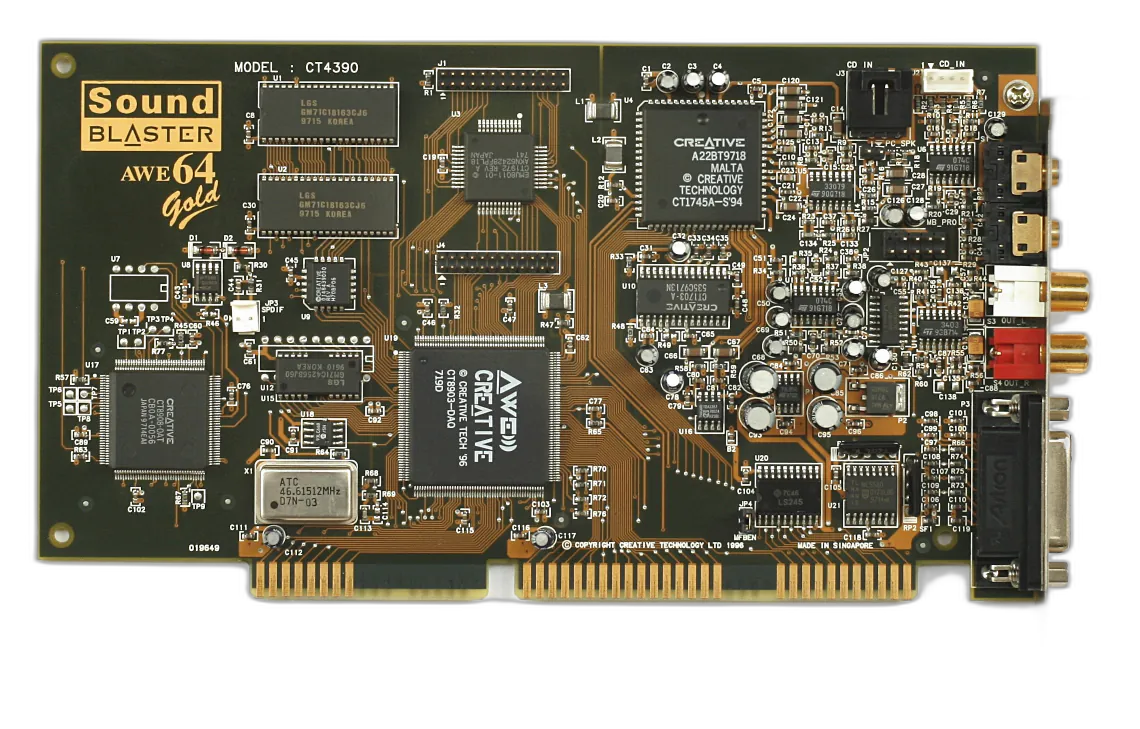
In the early 2000s I bought a quadraphonic 4.1 speaker system, the Cambridge Soundworks FPS2000 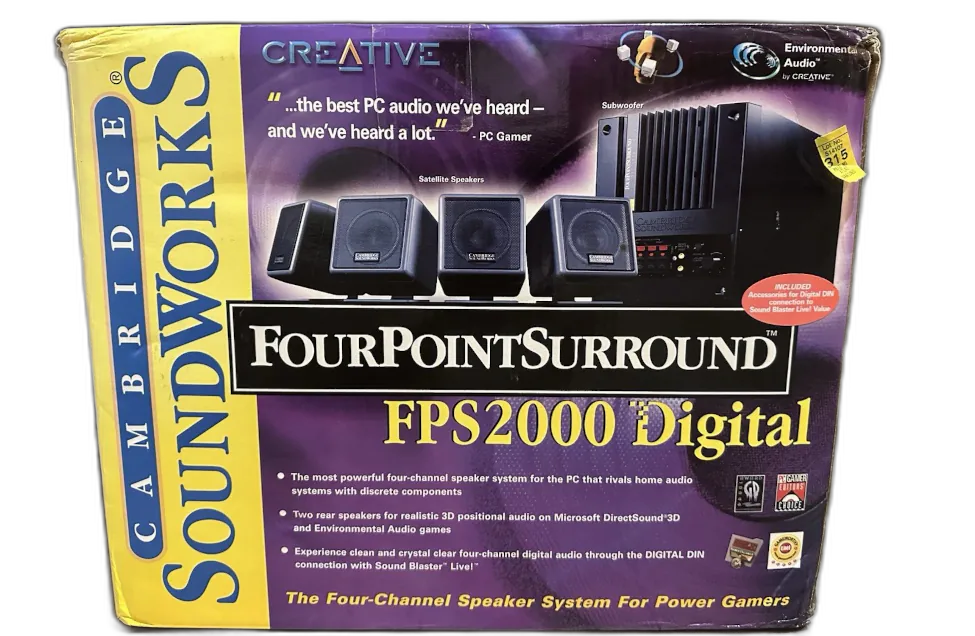 , which, when connected to a Sound Blaster AWE64 Mark II, made it possible to listen to music and play games with a very convincing immersive quadraphonic effect. When I later replaced components, I moved to an ASUS Xonar D2X, which, despite being a modern dedicated sound card, lacked the Sound Blaster’s digital connector. On top of that, since there were no official drivers for modern versions of Windows, I had to rely on community drivers. After switching to Debian Linux, the ASUS Xonar D2X stopped working correctly, which meant the rear speakers received no signal at all.
  After several failed configuration attempts, I decided to go back to the motherboard’s integrated audio on the ASUS ROG STRIX B550-F Gaming. Although it is not a dedicated card, it is fully compatible with PipeWire and allows a stable quadraphonic setup.
This guide documents the definitive solution for configuring a Cambridge Soundworks FPS2000 quadraphonic 4.1 speaker system on a modern motherboard running Debian Forky/Sid, using the PipeWire sound server, the JamesDSP plugin, and automation through a user-level systemd service.
Table of contents
Table of contents
1. Technical hardware analysis and rationale for the change
Why the ASUS Xonar D2X did not work
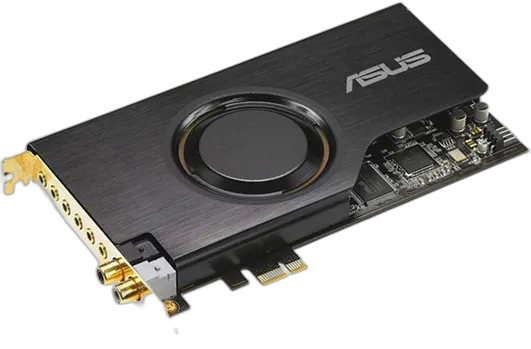
The dedicated ASUS Xonar D2X card (AV200 / C-Media CMI8788 chipset) has unavoidable incompatibilities on modern platforms such as AMD B550 (AM4 architecture):
- Legacy driver with no support (
snd_virtuoso): The kernel module for this card was originally developed between 2007 and 2009. On modern Linux kernel versions and under dynamic audio architectures such as PipeWire, secondary channel mapping fails, causing forced downmixing to the front channels or a complete loss of signal. - Electrical failure in the PCIe bridge (PLX PEX8112): The Xonar D2X is a native PCI card that uses a physical bridge chip to adapt to the PCI Express bus. Modern chipsets do not correctly manage the power states of this legacy component through this obsolete driver. This prevents the card from sending the voltage pulse required to activate its secondary mechanical analog relays. As a result, even though the operating system reports the rear ports as active, the physical jacks (black/orange) remain completely electrically inactive.
Choosing the integrated card (Realtek SupremeFX S1220A)
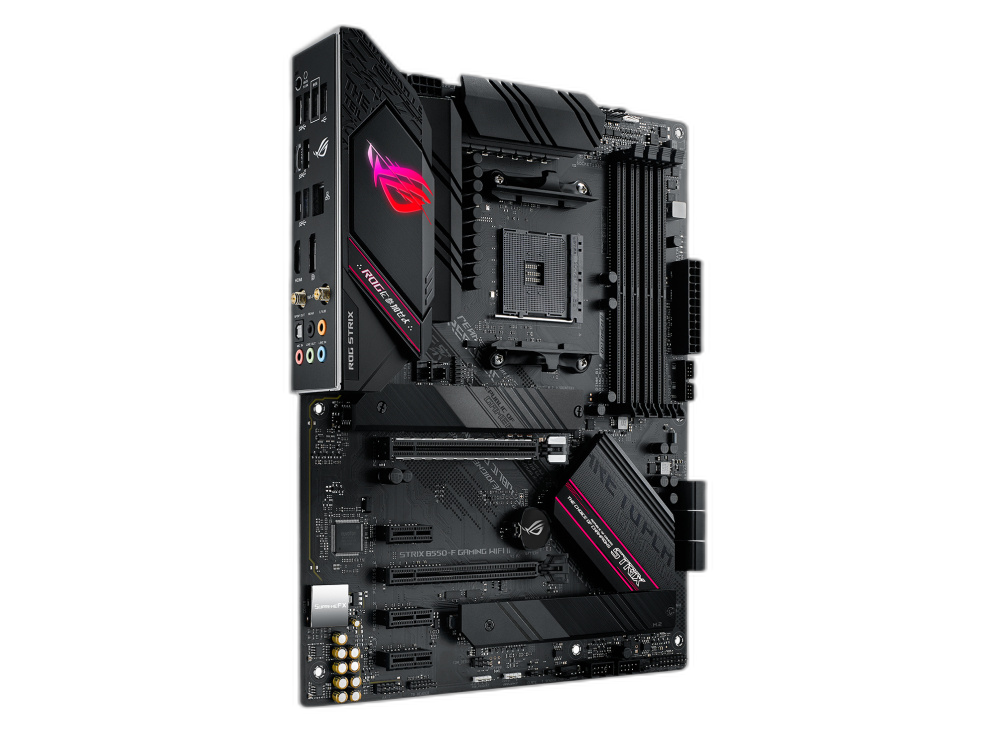
The decision was made to return to the integrated audio on the ASUS ROG STRIX
B550-F Gaming motherboard. This card uses the standard modern snd-hda-intel
driver, which is fully maintained in the Linux kernel, ensuring stability,
PipeWire compatibility, and immediate analog response.
2. How the Cambridge Soundworks FPS2000 speakers work
The Cambridge Soundworks FPS2000 operate in a particular way with respect to audio signal processing:
- Satellite separation (4.0): They receive two independent stereo signals through 3.5 mm analog connections: the green cable (Front Left/Right) and the black cable (Rear Left/Right). The system amplifier processes these signals discretely and sends them to the four independent satellites.
- Hardware crossover for the subwoofer (the “.1”): The system does not require the computer to send a separate Low Frequency Effects (LFE) channel. The amplifier circuit built into the subwoofer intercepts low frequencies from the front and rear inputs, combines them in analog form, and reproduces them through the bass speaker connector.
- Physical fader control: The wired volume control includes a balance potentiometer (Fader). It is essential that this control be placed exactly in its center position (physical detent) to allow even distribution of the electrical signal to the rear and front amplification stages.
3. System implementation and configuration
Step 1: Physical cable connection
- Connect the Green cable (front speakers) to the green jack (Line Out / L-OUT) on the rear panel of the ROG STRIX board.
- Connect the Black cable (rear speakers) to the black jack (REAR) on the rear panel of the ROG STRIX board.
- Leave the remaining analog ports unused.
Step 2: Audio profile configuration
In your desktop environment’s volume mixer (KDE Plasma), go to the integrated audio device settings (“Internal Audio”) and select the Analog Surround 4.1 profile (or 5.1 if the former is not available, since the script will ignore the center channel). This exposes the required hardware nodes in PipeWire.
Step 3: Channel cloning script
Create the script responsible for duplicating the stereo stream processed by JamesDSP to the rear outputs and the virtual LFE channel:
Before creating the script, you need to identify the internal name of the integrated audio output in PipeWire. To obtain it, first enable the Analog Surround 4.1 profile and run:
pactl list short sinksIn my case, the integrated output appears with a name similar to this:
alsa_output.pci-0000_0f_00.4.analog-surround-41The part that stably identifies the hardware is
alsa_output.pci-0000_0f_00.4; the .analog-surround-41 suffix corresponds to
the selected output profile. You can also verify the exact names of the ports
exposed by PipeWire with:
pw-link -o | grep analog-surroundThe value obtained must be used in the script’s INTEGRADA variable. If the
motherboard or PCI bus is different, this identifier will change.
#!/bin/bash# Immutable hardware address of the integrated sound cardINTEGRADA="alsa_output.pci-0000_0f_00.4"# Absolute path to the PipeWire link control executablePW_BIN="/usr/bin/pw-link"# Duplicate the front left channel (FL) to the rear left channel (RL)# Redirect errors to /dev/null in case the link is already established
$PW_BIN jdsp_@PwJamesDspPlugin_JamesDsp:output_FL ${INTEGRADA}.analog-surround-41:playback_RL 2>/dev/null
# Duplicate the front right channel (FR) to the rear right channel (RR)
$PW_BIN jdsp_@PwJamesDspPlugin_JamesDsp:output_FR ${INTEGRADA}.analog-surround-41:playback_RR 2>/dev/null
# Force injection of the left signal into the virtual subwoofer channel (LFE)# This ensures consistency in the sub-frequency map managed by the matrix$PW_BIN jdsp_@PwJamesDspPlugin_JamesDsp:output_FL ${INTEGRADA}.analog-surround-41:playback_LFE 2>/dev/null# Exit successfully to avoid warnings in systemdexit 0
Grant execute permissions to the script:
chmod +x ~/.local/bin/fix-audio-routing.shStep 4: Automation with user-level systemd
To have the configuration run automatically at login, create a user service unit.
Create the configuration file:
[Unit]Description=4.1 channel cloning for Cambridge FPS2000# Ensures the script runs after the sound server and the graphical session are readyAfter=pipewire.service wireplumber.service graphical-session.target[Service]# Sets the type to oneshot, since this is a quick script that exits immediatelyType=oneshot# Execution command using the %h macro, which resolves the user's home dynamicallyExecStart=%h/.local/bin/fix-audio-routing.sh# Adds a 3-second delay to ensure JamesDSP has fully loadedExecStartPre=/bin/sleep 3RemainAfterExit=yes[Install]# Links the service to the default target for user loginWantedBy=default.targetRun the following commands to register, enable, and start the service immediately:
# Reload the systemd daemon so it recognizes the new user unitsystemctl --user daemon-reload# Enable the service so it runs automatically on every loginsystemctl --user enable dsp-routing.service# Start the service manually right now to activate the environmentsystemctl --user start dsp-routing.serviceTo verify that it initialized correctly, check its status with:
systemctl --user status dsp-routing.serviceIt should show the status Active: active (exited) in green.
By moving the balance potentiometer knob (Fader) to the left or right, you can verify that the rear speakers are receiving signal correctly and that the subwoofer reproduces low frequencies evenly.