Introduction
I recently discovered the JavaScript library p5.js thanks to a Facebook post by Max de Mendizábal (yes, I know, rather late). This library offers a simple, approachable way to create art and interactive visualizations on the web. In this article, we will explore how to use it to make digital artwork and how it can help artists and designers.
Table of contents
Table of contents
History
In 2001, Ben Fry and Casey Reas, members of the Aesthetics and Computation Group at the MIT Media Lab, led by John Maeda, created Processing. It is an open-source programming language and integrated development environment based on simplified Java syntax and a graphics programming model designed for visual artists and designers. Originally conceived as a tool for teaching programming to artists and designers, it soon became a popular platform for creating digital art and interactive visualizations.
Processing gave rise to several related and inspired projects, including p5.js. Lauren McCarthy created this library in 2014, following the same philosophy as Processing but adapting it to JavaScript and the web. p5.js provides approachable functions and tools for creating graphics, animations, and interactive visualizations.
The Wikipedia page about Processing lists other related and inspired projects, including Processing.py and Processing for Android.
Installation and setup
To start using p5.js, we first need to add the library to our project. We can either load it from a CDN or install it as an npm dependency.
From a CDN
The simplest option is to load the library from a content delivery network (CDN) in our HTML document:
<!DOCTYPE html><html lang="en"> <head> <meta charset="UTF-8" /> <meta name="viewport" content="width=device-width, initial-scale=1.0" /> <title>My first p5.js sketch</title> <script src="https://cdnjs.cloudflare.com/ajax/libs/p5.js/2.3.1/p5.min.js"></script> </head> <body> <script src="sketch.js"></script> </body></html>sketch.js is the file where we will write our p5.js code. We can also download the library from its official website and host it locally in the project.
As an npm dependency
If the project already uses a bundler such as Vite, Astro, or webpack, it is usually better to install p5 as a dependency. This pins the version in package.json, removes the runtime dependency on a third party, and lets the project work offline:
npm install p5# orbun add p5pnpm add p5yarn add p5The package includes its own TypeScript definitions (p5/types/p5.d.ts), so there is no need to install @types/p5.
It can then be imported like any other module. Note that p5 accesses window when loaded, so it must only be imported by code that runs in the browser. In Astro or Next.js, load it inside a client-side script or with a dynamic import(), never during server-side rendering:
import p5 from "p5";
new p5(p => {  p.setup = () => {    p.createCanvas(400, 400);  };  p.draw = () => {    p.background(20);    p.circle(p.mouseX, p.mouseY, 40);  };}, document.getElementById("container"));
The second argument to new p5() is the DOM element that will contain the canvas. If omitted, p5 appends it to the end of <body>. This article uses instance mode to embed the sketches shown below.
The complete library is around one megabyte, so a dynamic import() is useful for ensuring that only pages containing a sketch download it.
Introduction to creative coding
In creative coding, code does more than solve a task: it also defines an image, a movement, or an experience. Instead of starting with a finished work, we establish rules and observe what they produce. p5.js makes this process easier by providing a canvas, an animation loop, and straightforward functions for drawing and interaction.
Sketch structure
A basic sketch usually contains two functions:
function setup() {  createCanvas(600, 400);}
function draw() {  background(245);  circle(300, 200, 80);}
setup() runs once when the sketch starts and is used to create the canvas and define its initial configuration. draw() runs automatically—usually about 60 times per second—and redraws the scene. background() clears the previous frame; when it is omitted, shapes leave trails that can become a visual device.
Coordinates and shapes
The origin (0, 0) is at the top-left corner. The x axis increases to the right, while the y axis increases downward. The width and height variables contain the current canvas dimensions:
line(0, 0, width, height);circle(width / 2, height / 2, 100);rect(40, 60, 120, 80);triangle(300, 40, 240, 160, 360, 160);Each function receives coordinates and dimensions. For example, circle(x, y, diameter) draws a circle centered at (x, y), while rect(x, y, width, height) places the rectangle’s top-left corner at (x, y) by default.
Color and style
fill() controls the fill and stroke() controls the outline. noFill() and noStroke() disable them, while strokeWeight() changes the line width:
background(250);fill(57, 255, 20, 140);stroke(20);strokeWeight(3);circle(200, 200, 150);The first three values represent red, green, and blue; the fourth controls transparency. By default, all four range from 0 to 255. CSS colors can also be used, for example fill("#39ff14").
Movement and time
Animation emerges when a value changes between frames. frameCount records how many times draw() has run, and functions such as sin() can create periodic motion:
function draw() { background(245); const x = width / 2 + sin(frameCount * 0.03) * 160; circle(x, height / 2, 50);}For greater control, store the animation state in variables declared outside draw() and update them gradually:
let x = 0;
function draw() {  background(245);  x = (x + 2) % width;  circle(x, height / 2, 40);}
Interaction
p5.js maintains variables that describe the state of the mouse and keyboard. mouseX and mouseY contain the pointer position, while mouseIsPressed and keyIsPressed allow us to check their state continuously:
let diameter = 50;
function draw() {  background(245);  fill(mouseIsPressed ? "#39ff14" : "#222");  circle(mouseX, mouseY, diameter);}
function keyPressed() {  if (key === " ") {    diameter = random(20, 100);  }}
Event functions such as mousePressed(), mouseDragged(), keyPressed(), and touchStarted() are called by p5.js whenever the corresponding action occurs.
Randomness, repetition, and transformation
Combining loops with random() produces variations:
function mousePressed() {  background(245);
for (let i = 0; i < 100; i++) { const d = random(5, 40); circle(random(width), random(height), d); }}translate(), rotate(), and scale() transform the coordinate system. It is good practice to place each transformation between push() and pop() so it does not affect the rest of the drawing:
push();translate(width / 2, height / 2);rotate(frameCount * 0.01);rectMode(CENTER);rect(0, 0, 140, 40);pop();These are the essential building blocks: state, repetition, variation, time, and interaction. Together they can produce anything from geometric patterns to simulations and generative art. The examples above use global mode; in instance mode, simply prefix p5.js functions and variables with p., as in p.circle() or p.mouseX.
A live sketch
The CDN example uses global mode, in which setup() and draw() are global functions. That approach only allows one sketch per page, so this article uses instance mode to embed several sketches: the code receives a p object and all p5 functions are called with the p. prefix.
Here is the result, running directly on this page:
p.setup = () => {
  p.createCanvas(400, 400);
  p.noFill();
};
p.draw = () => {
  p.background(20);
  for (let i = 0; i < 24; i++) {
    p.stroke(150 + i * 4, 100, 255 - i * 8);
    const r = 20 + i * 14 + p.sin(p.frameCount * 0.02 + i) * 10;
    p.ellipse(p.width / 2, p.height / 2, r, r);
  }
};
Art in two lines
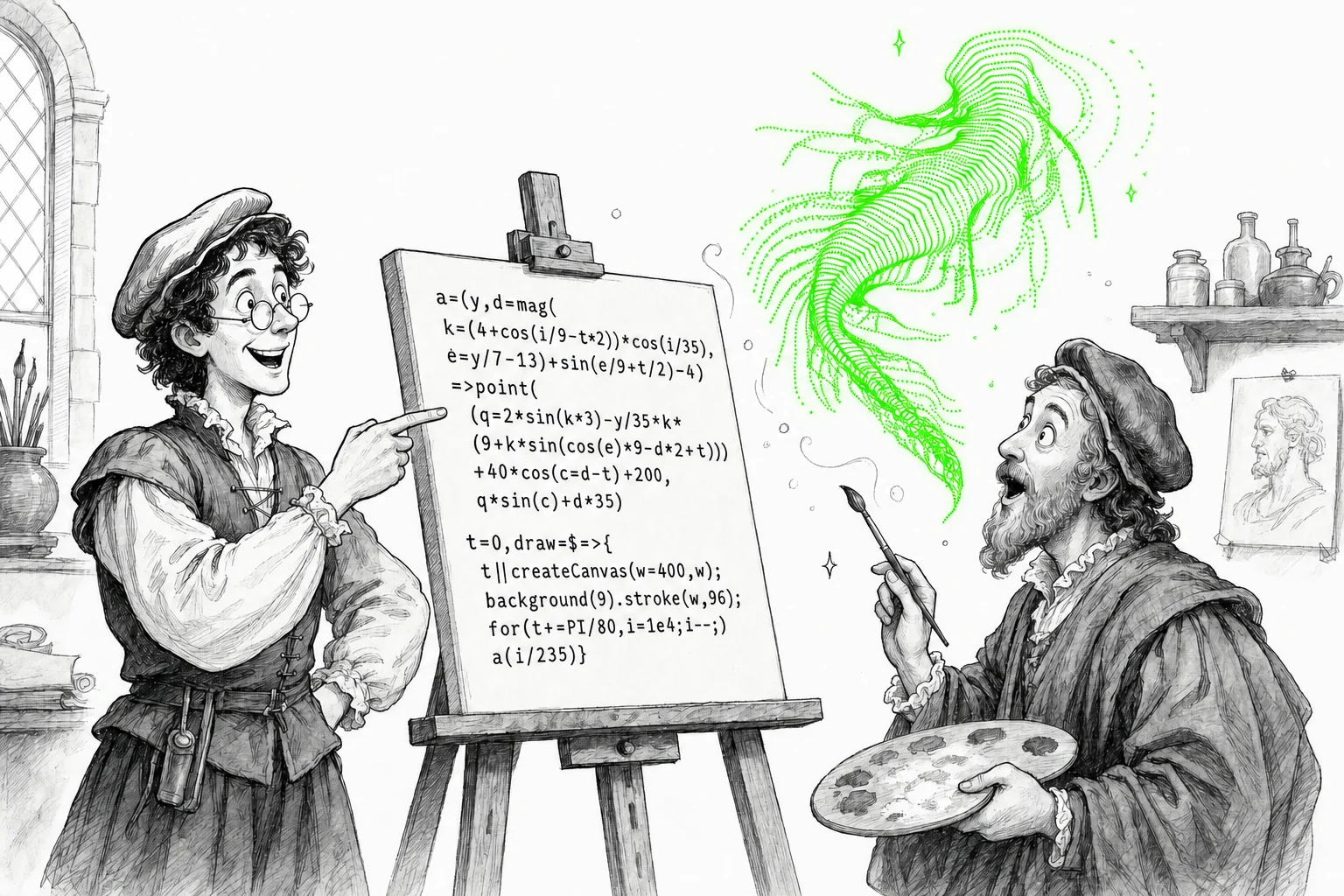
A whole code golf subculture has grown around p5.js: sketches written to fit in a tweet, where every character counts. This example draws what looks like an undulating three-dimensional surface in only two lines:
a=(y,d=mag(k=(4+cos(i/9-t*2))*cos(i/35),e=y/7-13)+sin(e/9+t/2)-4)=>point((q=2*sin(k*3)-y/35*k*(9+k*sin(cos(e)*9-d*2+t)))+40*cos(c=d-t)+200,q*sin(c)+d*35)
t=0,draw=$=>{t||createCanvas(w=400,w);background(9).stroke(w,96);for(t+=PI/80,i=1e4;i--;)a(i/235)}
Nearly all its tricks save characters rather than change the drawing: the default parameters of a double as temporary variables (d, k, and e); assignments are embedded inside calls (createCanvas(w=400,w) and cos(c=d-t)); the for loop counts down because i-- is shorter than a comparison; and t||createCanvas(...) takes the place of setup(). Beneath all that are simply ten thousand points per frame, positioned with sines and cosines, and a rotation that advances by PI/80 radians on each call to draw().
Capabilities
p5.js can draw basic shapes—lines, circles, rectangles, and polygons—as well as images and text. It also provides tools for working with color, transparency, and visual effects. Its draw() loop makes animation straightforward, while events can respond to the mouse, keyboard, and touchscreens. It can play and manipulate video directly; sound features are available through the additional p5.sound library. Its WebGL mode also supports three-dimensional graphics, lighting, cameras, and shaders.
Online editor
At editor.p5js.org, you can write and run p5.js code directly in the browser without installing anything. The editor can save and share sketches and is a good place to experiment and learn.
Advanced
This final sketch combines three-dimensional primitives, lighting, and hierarchical transformations to build a stylized bird. Its wings pivot from the body, and their angle changes in every frame to simulate flight. Move the pointer over the scene to view it from different angles:
p.setup = () => {
  p.createCanvas(640, 400, p.WEBGL);
  p.angleMode(p.RADIANS);
};

p.draw = () => {
  p.background(225, 242, 250);
  p.ambientLight(110);
  p.directionalLight(255, 255, 255, -0.4, 0.6, -1);

  const wingBeat = p.sin(p.frameCount * 0.12);
  const rotationY = p.map(p.mouseX, 0, p.width, -0.35, 0.35, true);
  const rotationX = p.map(p.mouseY, 0, p.height, 0.15, -0.15, true);

  p.rotateX(rotationX);
  p.rotateY(rotationY - 0.25);
  p.rotateZ(-0.08);

  // Body
  p.noStroke();
  p.fill(45, 62, 72);
  p.push();
  p.rotateZ(p.HALF_PI);
  p.ellipsoid(58, 105, 52, 28, 20);
  p.pop();

  // Breast
  p.fill(235, 238, 230);
  p.push();
  p.translate(24, 17, 32);
  p.rotateZ(p.HALF_PI);
  p.ellipsoid(38, 70, 18, 22, 14);
  p.pop();

  // Head, eyes, and beak
  p.fill(55, 72, 78);
  p.push();
  p.translate(94, -25, 0);
  p.sphere(42, 24, 16);

  p.fill(245);
  p.push();
  p.translate(30, -10, 28);
  p.sphere(9, 12, 8);
  p.pop();

  p.fill(20);
  p.push();
  p.translate(34, -11, 35);
  p.sphere(4, 10, 6);
  p.pop();

  p.fill(255, 180, 35);
  p.push();
  p.translate(51, 4, 0);
  p.rotateZ(-p.HALF_PI);
  p.cone(12, 38, 4, 1);
  p.pop();
  p.pop();

  // Articulated wings
  const wing = (side) => {
    p.push();
    p.translate(-5, -8, side * 30);
    p.rotateX(side * (0.55 + wingBeat * 0.65));
    p.rotateY(side * 0.15);
    p.fill(70, 92, 102);

    for (let i = 0; i < 7; i++) {
      p.push();
      p.rotateY(side * (i - 3) * 0.055);
      p.translate(-25 - i * 12, 0, side * (28 + i * 10));
      p.rotateZ(p.HALF_PI + i * 0.045);
      p.ellipsoid(14, 62 + i * 7, 7, 12, 8);
      p.pop();
    }
    p.pop();
  };

  wing(-1);
  wing(1);

  // Tail
  p.fill(65, 84, 92);
  for (let i = -2; i <= 2; i++) {
    p.push();
    p.translate(-93, 12, i * 13);
    p.rotateZ(p.HALF_PI + i * 0.04);
    p.ellipsoid(10, 58, 7, 10, 8);
    p.pop();
  }
};
Conclusions
As we have seen, p5.js is a powerful tool for bringing many kinds of graphics and animation directly to the web. It also has substantial educational value, following in the tradition of teaching languages such as Logo.