Introduction
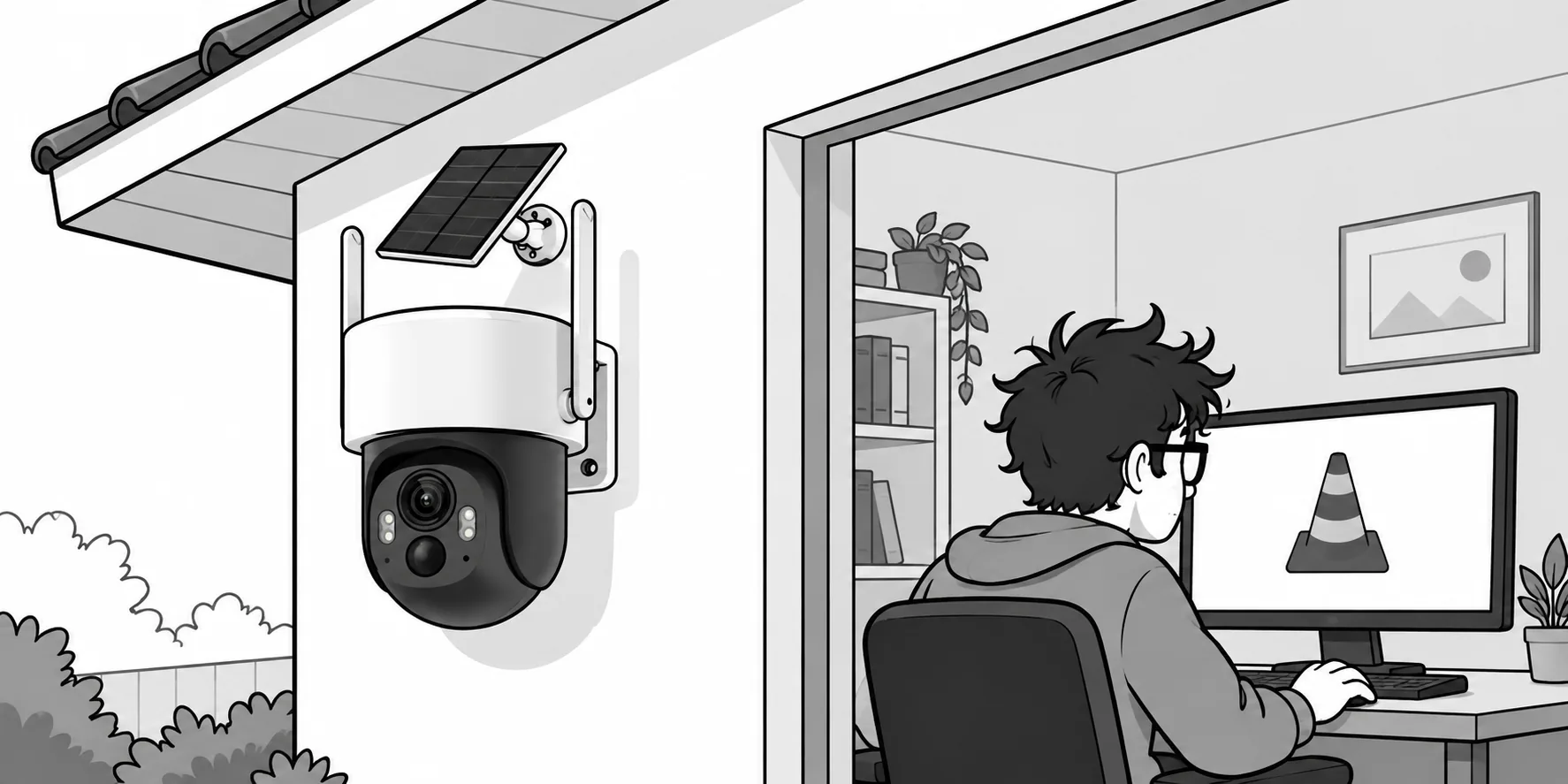
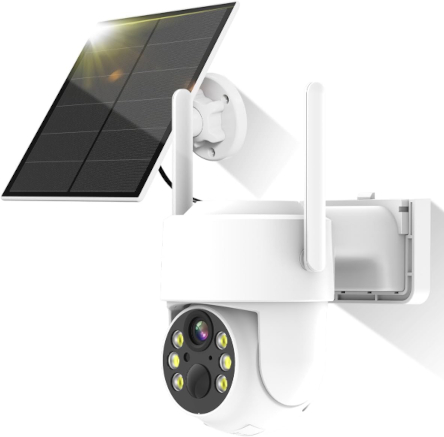
A year ago, I bought an inexpensive Easytao security camera, listed on Amazon as the Q25 model. These cameras are essentially generic, although they perform reasonably well. They do not compare with other budget options such as Imou cameras, but they are relatively cheaper and expendable if damaged or stolen.
Recently, I needed to review the videos recorded on the camera’s microSD card
and then share them via WhatsApp. I removed the card and connected it to my
computer (Debian Sid), but VLC would not play the files with the .h264
extension. The file command did not recognize them either and only returned
data. This led me to investigate their actual format and how to convert them
to a WhatsApp-compatible MP4 container. With help from “Claudio” and FFmpeg,
of course.
Table of contents
Table of contents
The files
Inexpensive security cameras, such as those from Easytao, save their recordings on a microSD card with names like this:
17.37.43-17.37.48[R][@0][0].h264The name contains the clip’s start and end times. The letter in brackets seems
to indicate the recording type: most clips have R, and some have A, probably
for a motion alarm. The extension suggests H.264 video, but VLC will not play
it, and the file command only returns data.
In this article, you will analyze the file’s contents byte by byte and discover its actual format. Then you will convert it to MP4 without losing quality and re-encode it to share via WhatsApp. By the end, you will have a Bash script that detects the input format on its own, without relying on the extension.
What is inside the file
A file without a container has no metadata to identify it, so you need to read
its first few bytes. od comes installed on any Linux system:
od -A x -t x1 -N 48 '23.40.19-23.40.24[R][@0][0].h264'000000 00 00 01 fc 13 0c 40 b4 13 7a 6f 6a ce e0 00 00000010 00 00 00 01 40 01 0c 01 ff ff 01 60 00 00 03 00000020 b0 00 00 03 00 00 03 00 99 ac 09 00 00 00 01 42H.264 and H.265 (HEVC) video without a container uses the Annex B format: a
sequence of NAL (Network Abstraction Layer) units, each preceded by the start
code 00 00 01 or 00 00 00 01. The byte following the start code is the unit’s
header and encodes its type.
Two distinct things coexist here:
- A proprietary 16-byte block that starts with
00 00 01 FC. It does not belong to any video standard, and its structure is undocumented. Some of its fields change from one file to another, so they probably store a timestamp or a manufacturer-specific counter. - The video itself, starting at offset
0x10, where the start code00 00 00 01appears, followed by the byte40.
H.264 and HEVC calculate the NAL type differently
The same byte means different things in each standard:
- In H.264, the type is the 5 least significant bits:
byte & 0x1F. - In HEVC, the type occupies the 6 bits following the forbidden bit:
(byte >> 1) & 0x3F. The HEVC header is also two bytes long, and the second byte is usually01.
Applying both formulas to the bytes following each start code in the file gives you this table:
| Byte | As HEVC | As H.264 |
|---|---|---|
40 | 32: VPS (Video Parameter Set) | 0: unspecified |
42 | 33: SPS | 2: slice data partition A |
44 | 34: PPS | 4: slice data partition C |
4E | 39: SEI | 14: NAL prefix (SVC extension) |
26 | 19: IDR frame (keyframe) | 6: SEI |
Read as HEVC, the file has the canonical startup sequence: VPS, SPS, PPS, SEI,
and a keyframe. Read as H.264, it makes no sense: neither SPS nor PPS appears,
and the keyframe is mistaken for an SEI message. The XX 01 pair after each
start code also reveals HEVC’s two-byte header.
Conclusion: the file is raw HEVC in Annex B format, with a proprietary
block at the beginning, even though its extension says .h264. Cheap cameras
often record in H.265 to save space on the card, while their firmware keeps the
extension used by earlier models.
Why VLC and FFmpeg’s automatic detection fail
An Annex B stream has no unique “magic number”: the start code is the same in H.264 and HEVC. Players have to guess, and they guess incorrectly for two reasons:
- The extension is misleading. With
.h264, FFmpeg selects the H.264 demuxer, reports a valid stream, and then decodes 0 frames. The log fills withmissing picture in access unitandPicture timing SEI payload too largemessages, which correspond to the right-hand column in the table above. - The proprietary block hides the signature. If you rename the file without
an extension or with a fake extension, FFmpeg’s detector encounters the invalid
FCunit first and returnsInvalid data found when processing input.
You can check this with ffprobe. The -count_frames option forces it to
decode the entire stream and count the frames it actually produces:
f='23.40.19-23.40.24[R][@0][0].h264'ffprobe -v quiet -select_streams v:0 -count_frames \ -show_entries stream=codec_name,width,height,nb_read_frames -of csv=p=0 "$f"ffprobe -v quiet -f hevc -select_streams v:0 -count_frames \ -show_entries stream=codec_name,width,height,nb_read_frames -of csv=p=0 "$f"h264,0,0,N/Ahevc,2560,1440,65With automatic detection, FFmpeg cannot even determine the resolution. Forcing
the format with -f hevc reveals the 2560×1440 resolution and the clip’s 65 frames.
Recover the video without re-encoding
Now that you know the format, you only need to put the stream into an MP4
container. -c copy copies the compressed data as is, so the conversion is
instant and loses no quality:
ffmpeg -f hevc -framerate 12.5 -i '17.37.43-17.37.48[R][@0][0].h264' \ -c copy salida.mp4A raw stream does not store timestamps, so the container does not know how
fast to play the frames. That is why -framerate is needed. To calculate the
value, divide the clip’s frame count by its duration, which comes from the
filename: 65 frames between 17:37:43 and 17:37:48 gives about 12.5 frames per
second. If the result looks sped up or in slow motion, try 15 or 25, which
are common frame rates for these cameras.
To convert an entire folder:
for f in *.h264; do ffmpeg -nostdin -v error -f hevc -framerate 12.5 -i "$f" -c copy "${f%.h264}.mp4"doneThe resulting MP4 plays in VLC and most desktop players, but the video inside is still HEVC.
Convert for WhatsApp
WhatsApp does not guarantee HEVC playback on every phone: depending on the device, it rejects the file or sends it as a document instead of a video. The most compatible combination is H.264 with AAC audio inside an MP4, so this time you do need to re-encode:
ffmpeg -nostdin -f hevc -framerate 12.5 -i '10.04.47-10.04.58[A][@0][0].h264' \ -vf "scale=-2:1080:out_range=tv,format=yuv420p,fps=25" \ -c:v libx264 -preset medium -crf 23 -profile:v high -level 4.0 \ -movflags +faststart salidcam2whatsapp.mp4Each option solves a specific problem:
| Option | Reason |
|---|---|
-c:v libx264 -profile:v high -level 4.0 | H.264 High, level 4.0: any phone from the last decade can decode it in hardware at 1080p. |
scale=-2:1080 | Reduces 2560×1440 to 1920×1080. WhatsApp recompresses the video anyway, so sending 1440p only wastes data. -2 calculates an even width that preserves the aspect ratio. |
out_range=tv,format=yuv420p | The camera records in full color range (yuvj420p). Some players show washed-out colors or refuse to play it; limited range is the standard for video. |
fps=25 | Duplicates frames to reach a constant rate of 25 fps. Some mobile players struggle with unusual frame rates such as 12.5. |
-crf 23 -preset medium | Constant visual quality with a reasonable file size: about 2.8 MB per 10 seconds of this video. |
-movflags +faststart | Places the MP4 index at the beginning of the file so playback can start before the download finishes. |
Without format=yuv420p, FFmpeg keeps the camera’s yuvj420p format even if
you specify -pix_fmt yuv420p. Check it in the output file:
ffprobe -v error -show_entries stream=codec_name,profile,pix_fmt,color_range \ salidcam2whatsapp.mp4[STREAM]codec_name=h264profile=Highpix_fmt=yuv420pcolor_range=tv[/STREAM]If you need smaller files, use scale=-2:720 or increase the value to
-crf 26. Either change reduces the size by roughly half.
Detect the format generically
The previous command depends on knowing beforehand that the file is HEVC. If you mix recordings from several cameras, or if new firmware changes the codec, you need to detect the format automatically.
As you have seen, neither the extension, nor file, nor FFmpeg’s automatic
detection works with these files. The robust strategy is empirical: try
several candidate formats and keep the one that decodes the most frames.
Automatic detection is included as another candidate, so ordinary MP4, MKV,
or AVI files are processed using their container.
Counting frames naturally rules out false positives: the H.264 demuxer “opens”
the HEVC file without an error but produces 0 frames, so it loses to -f hevc.
The cost is low: decoding a 10-second clip takes less than a second.
The complete script
Save the script as cam2whatsapp.sh. It accepts a list of files, detects each
one’s format, and writes the results to a whatsapp/ folder:
#!/usr/bin/env bash# Convert videos (with a container or raw camera streams) to WhatsApp-compatible MP4.# Usage: ./cam2whatsapp.sh file... ; output in ./whatsapp/# FPS for raw streams without timestamps (the camera records at ~12.5).FPS_CRUDO=${FPS_CRUDO:-12.5}
# Return the number of frames decoded with the given format ("" = automatic detection).cuadros() {  local fmt=$1 f=$2  ffprobe -v quiet ${fmt:+-f $fmt} -select_streams v:0 -count_frames \    -show_entries stream=nb_read_frames -of csv=p=0 "$f" | tr -dc 0-9}
mkdir -p whatsappfor f in "$@"; do  mejor= max=0  # Fixed list of candidates; add mjpeg or mpeg4 if your camera uses another codec.  for fmt in "" hevc h264; do    n=$(cuadros "$fmt" "$f"); n=${n:-0}    (( n > max )) && max=$n mejor=${fmt:-auto}  done  if (( max == 0 )); then echo "✗ $f: unrecognized format"; continue; fi  echo "→ $f: $mejor ($max frames)"
  entrada=(-i "$f")  [[ $mejor != auto ]] && entrada=(-f "$mejor" -framerate "$FPS_CRUDO" -i "$f")  ffmpeg -nostdin -v error -y "${entrada[@]}" -map 0:v:0 -map '0:a:0?' \    -vf "scale=-2:'min(1080,ih)':out_range=tv,format=yuv420p,fps=25" \    -c:v libx264 -preset medium -crf 23 -profile:v high -level 4.0 \    -c:a aac -b:a 128k -movflags +faststart \    "whatsapp/$(basename "${f%.*}").mp4" 2>&1 | grep -v -e NALU -e PPSdone
A few implementation details:
${fmt:+-f $fmt}adds-f formatonly when the candidate is not empty. With an empty candidate,ffprobeuses its normal automatic detection.tr -dc 0-9cleans upffprobeoutput, which may contain line breaks orN/A. If no digits remain,${n:-0}converts it to zero.-framerateonly applies to raw streams. A file with a container already has timestamps, which should not be overwritten.-map '0:a:0?'copies the first audio track if one exists. The question mark prevents an error when the file has no audio, as is the case with this camera. The quotes prevent the shell from interpreting?as a wildcard.min(1080,ih)reduces the resolution only if it exceeds 1080p. A 720p video keeps its size instead of being enlarged.grep -v -e NALU -e PPShides the warnings caused by the camera’s proprietary block. They are harmless, and without the filter they fill the terminal.- Files are stored in the
whatsapp/subdirectory with the same base name and the.mp4extension. Modify the script as needed to change the output folder.
Usage
Assume the camera’s video files are in the videos directory.
Make the script executable and pass it the files you want to convert:
chmod +x cam2whatsapp.shcd videos../cam2whatsapp.sh *.h264The script reports which format it selected for each file:
→ 23.40.19-23.40.24[R][@0][0].h264: hevc (65 frames)→ copia-sin-extension: hevc (65 frames)→ otro-video.mkv: auto (50 frames)The second line corresponds to the same file without an extension, and the
third to an ordinary MKV with HEVC video and MP3 audio. In all three cases, the
result is H.264 with yuv420p, plus AAC when the original has audio.
If video from another camera looks sped up or slow, change the assumed frame rate for raw streams:
FPS_CRUDO=15 ../cam2whatsapp.sh *.h264Troubleshooting
| Problem | Check and solution |
|---|---|
✗ unrecognized format | Inspect the first bytes with od -A x -t x1 -N 64. If no 00 00 01 start codes appear, the file is not Annex B; try ffmpeg -formats and add the appropriate format to the candidate list. |
| The video plays too fast or too slowly | Count the frames with ffprobe -f hevc -count_frames and divide by the duration indicated in the filename. Use that value in FPS_CRUDO. |
PPS id out of range or Failed to parse header appears | These are the camera’s proprietary blocks, which the decoder discards. Confirm that the output frame count matches the count from -count_frames. |
| WhatsApp sends the video as a document | Use ffprobe to check that the output is h264 with yuv420p. If the file is very large, reduce the resolution to 720p or increase the -crf value. |
| Colors look washed out on the phone | The range conversion is missing. Verify that the filter includes out_range=tv,format=yuv420p and that ffprobe reports color_range=tv. |
| The loop skips files | A call to ffmpeg inside the loop is missing -nostdin. |